1On the TV device, open Downloader or a trusted browser and go to https://theweasel.tv/signal-check. If support gives you a Downloader code, confirm that it opens that exact address before downloading.
2Choose the Stable APK unless support specifically asks you to join the controlled Beta pilot.
3If Android asks, allow Install unknown apps for Downloader or that browser only. Return to the download, choose Install, then turn that permission off again when setup is complete.
Part 2
Link this TV to your account
Enter the displayed code at theweasel.tv/link while signed in.
1Open WeaselCheck. It installs beside the WeaselTV player and does not replace or read it.
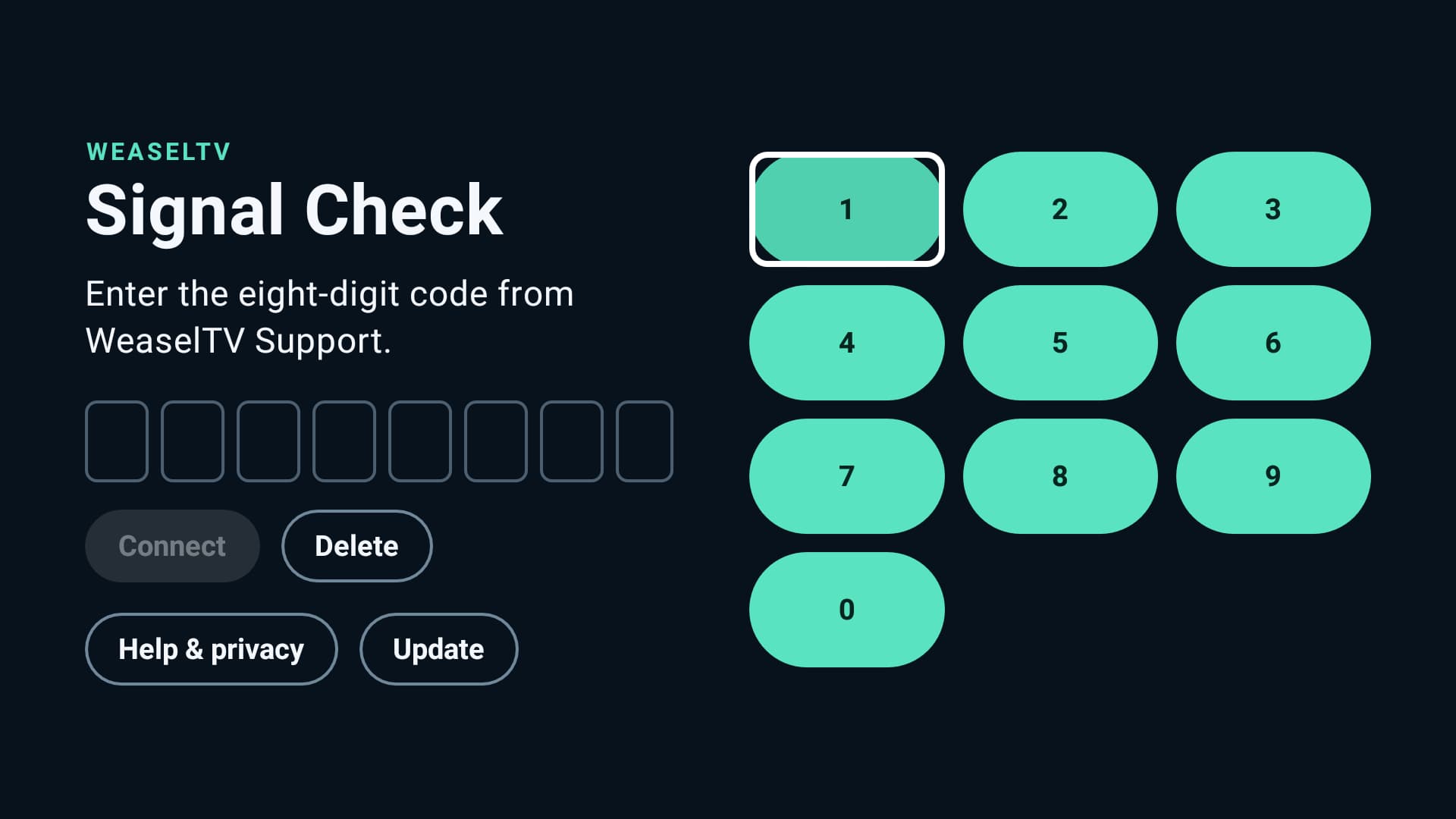
2On your phone or computer, sign in at theweasel.tv/link and enter the code shown on the TV. The code expires at the time displayed on screen.
3Choose the service line you want to check, confirm it, then return to the TV. WeaselCheck continues automatically.
Part 3
Read consent before starting
Review the collection summary, exclusions, time, and data cap before accepting.
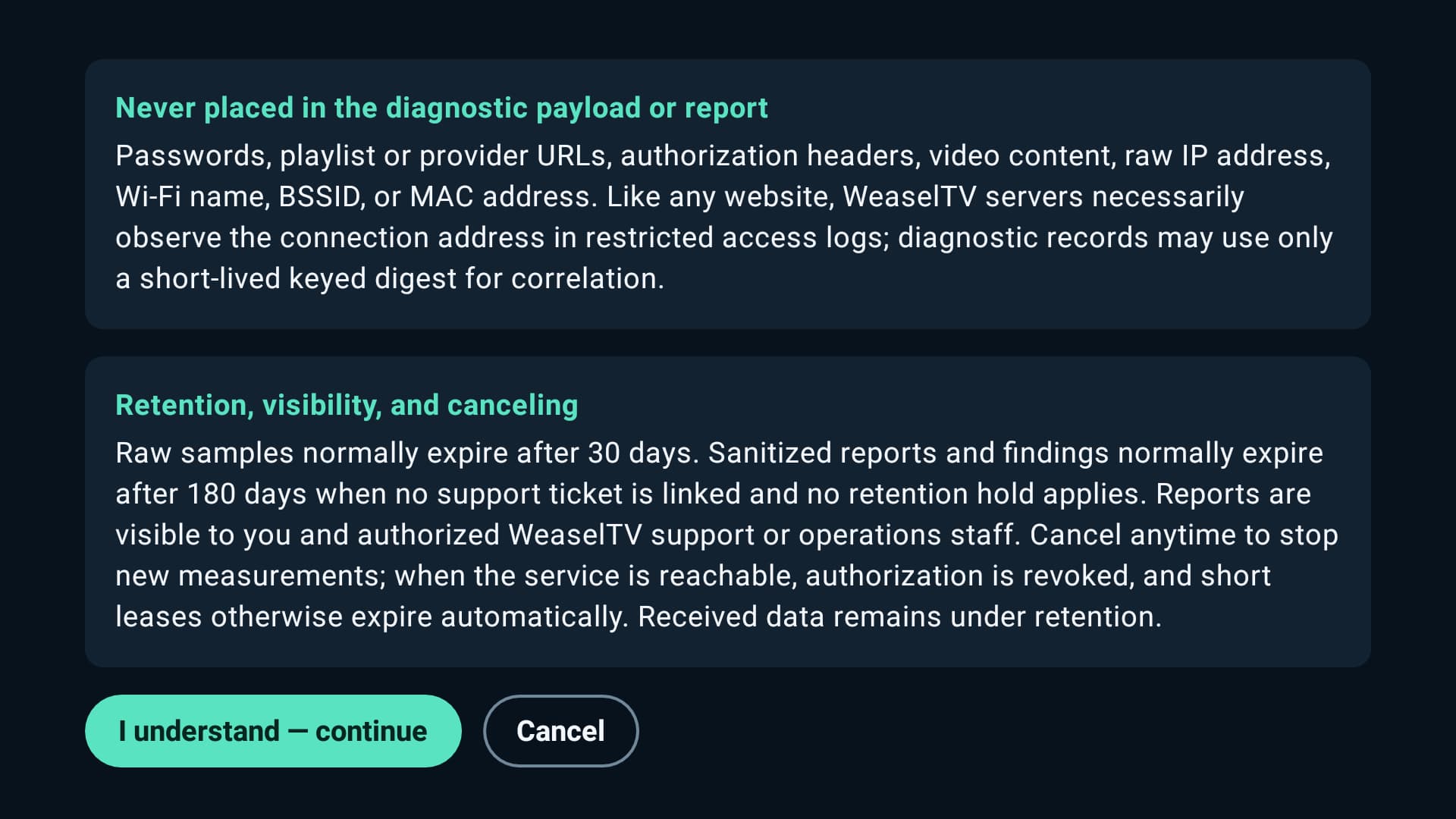
1Review the selected checks, maximum data use, retention, and who can see the report. A standard run is capped at 250 MB.
2A deep run is capped at 1 GB and requires a separate second confirmation. Decline it if you do not want the additional test.
3WeaselCheck does not collect Wi-Fi names or passwords, MAC addresses, serial numbers, raw IP addresses, location, other-app data, or video payloads.
Part 4
Let the visible check finish
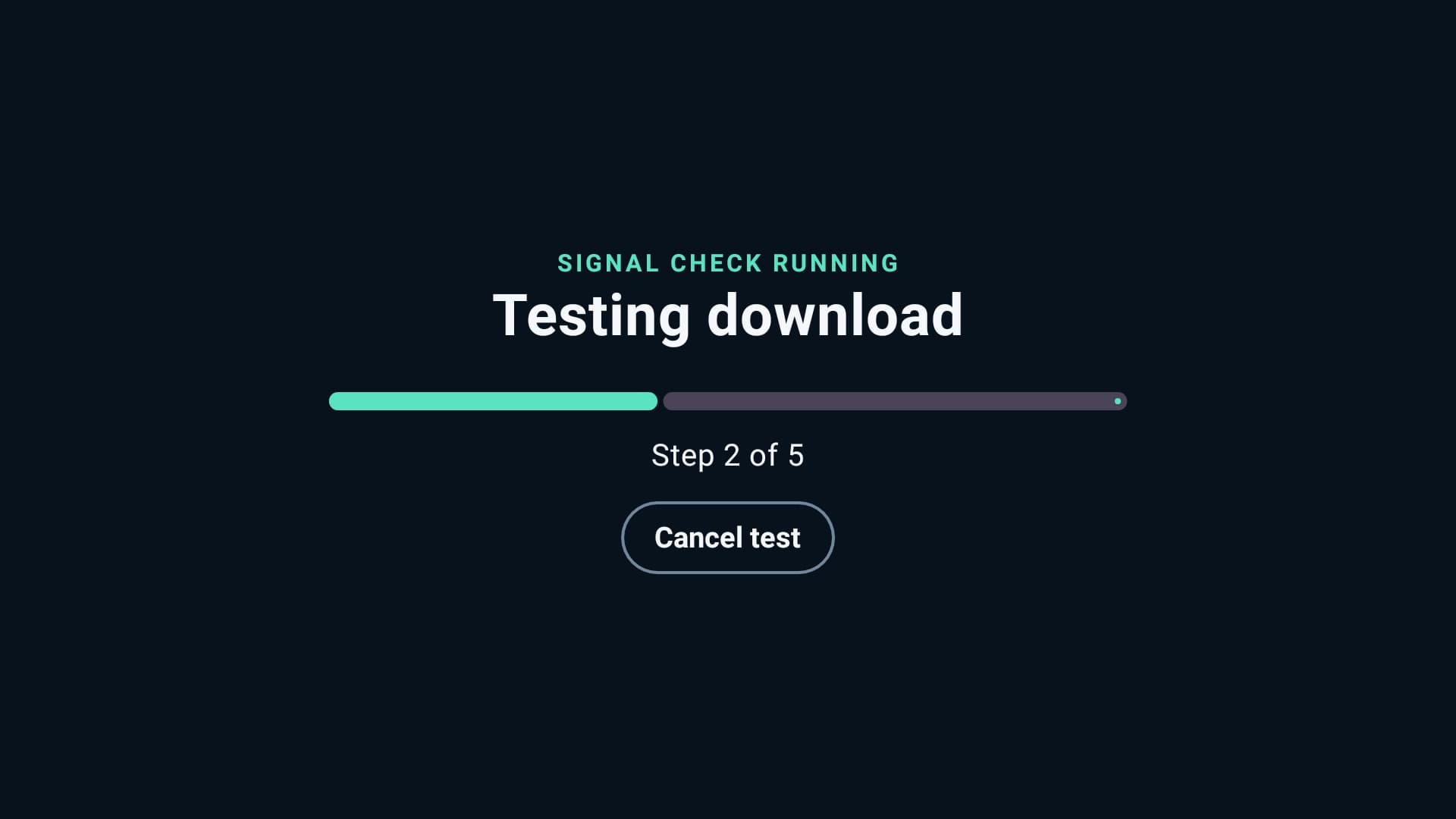
Keep the app visible while it names each step; Cancel remains available.
1Keep WeaselCheck open in the foreground while its plain-language progress steps run. Avoid starting another large download or speed test at the same time.
2You can choose Cancel with the remote at any time. Canceling stops new measurements and revokes the session's short-lived test access.
3If Android changes from Wi-Fi to Ethernet or the connection drops, follow the on-screen instruction instead of resetting the TV device.
Part 5
Review the result
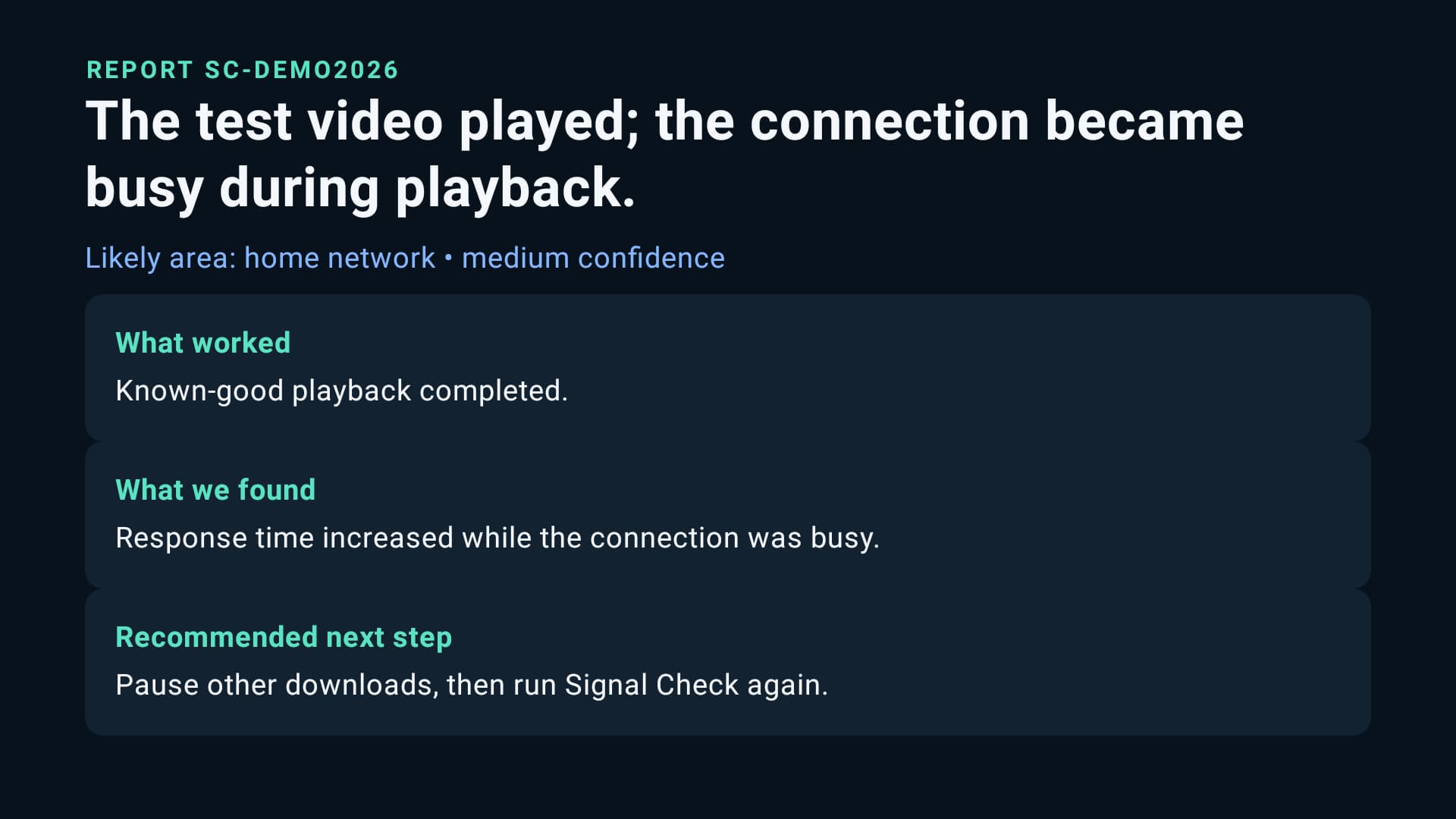
The customer report gives a confidence label, safe evidence, and a next action.
1Read the customer-safe finding and Try this first action on the TV. The report avoids provider names, secret addresses, and staff-only details.
2Open Diagnostics in your signed-in customer portal to review the same safe report or repeat a check when support asks.
3If the problem continues, open the linked support request and refer to the run reference. Never paste a playlist URL, username, or password into the ticket.
Never include a password, provider address, or payment information in a support request.